

@tma_mate_bot and press the Start button.
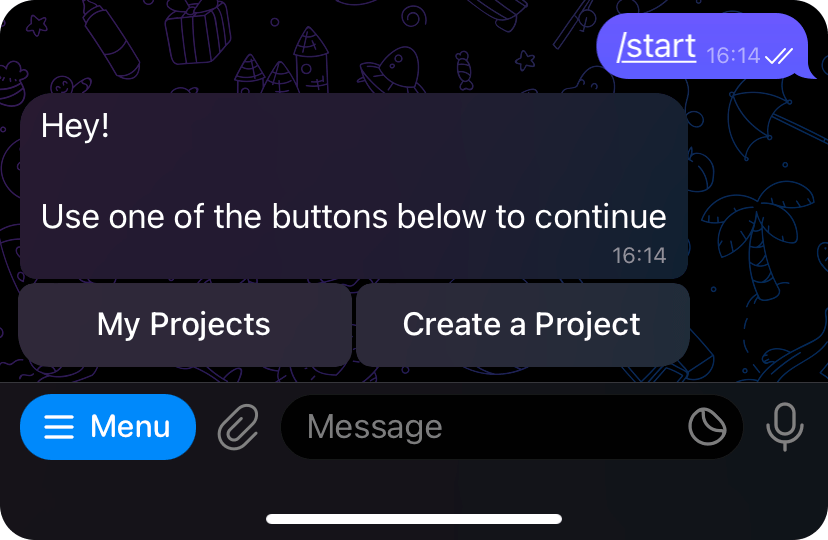
Create a Project button and enter the name of your project, following the
specified rules.
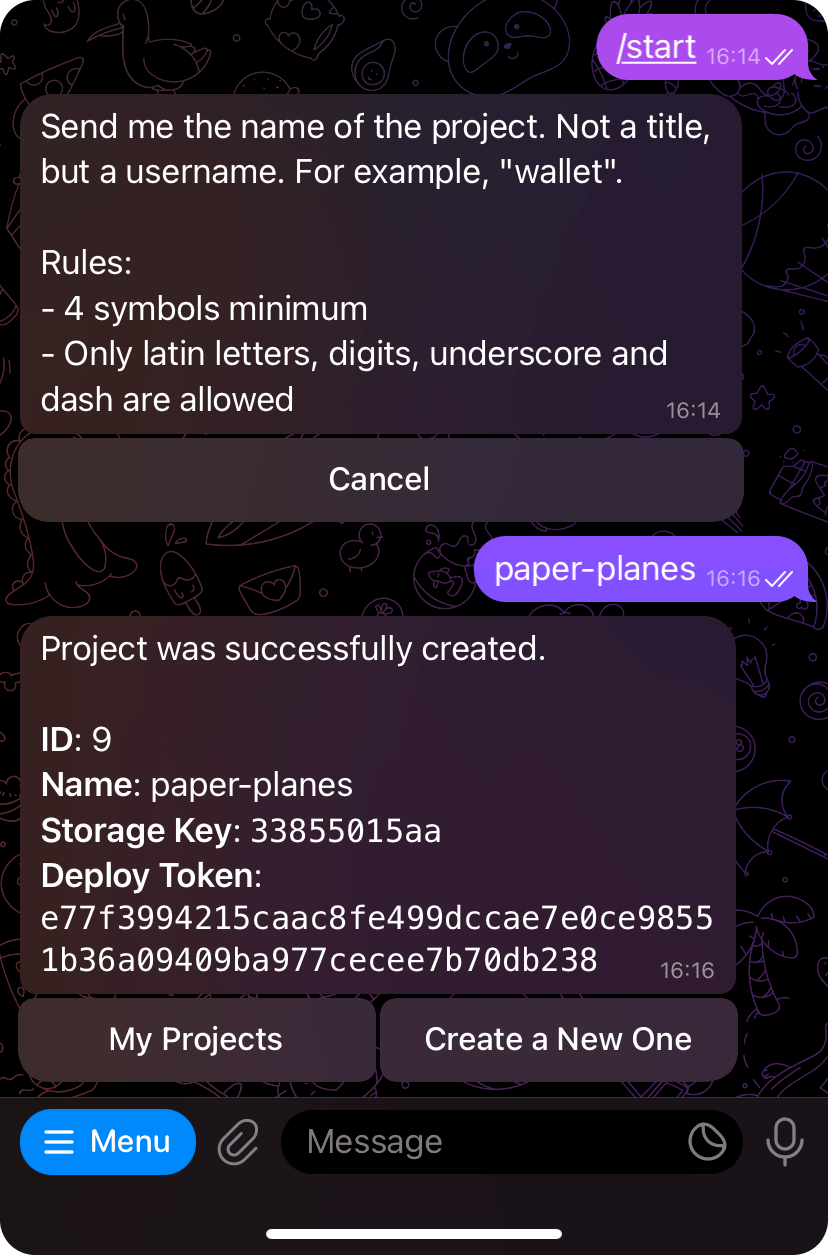
Deploy Token, which you will use later to deploy
the project.
Installing @telegram-apps/mate
To deploy your project, you need to install the@telegram-apps/mate CLI package.
mate CLI tool:
pnpm or npx:
Retrieving project deployment info
Before deploying the project, you might want to know the base URL. The base URL is the absolute URL that the project bundler will use to create links to all project assets. To retrieve the project deployment information, including the base URL, use the following command:https://35f105bd6b.tapps.global/latest is the base URL that you should
use in your bundler.
Deploying
Before deploying the project assets, ensure that you have built your project and are not deploying source files. You should only deploy files that can be successfully opened by the user’s browser. Let’s assume you have a project with ID48. Also, you have a dist directory with all the built files. To deploy this directory to the CDN, use the following command:
Important Note that your directory must include only the usual files and directories. All other types of files (symlinks, for example) are forbidden; the CLI tool will let you know about it.
Tagging
Mate allows you to use multiple tags in your project. A tag is simply a marker for your deployment version. Each tag corresponds to its own subdirectory, which is reflected in the final asset URL. By default, Mate uses thelatest tag. To override this, use the --tag option:
Using Config
To enhance your experience, you can create amate.yml file in your project root directory and
include the following content:
mate commands: